A Canon Pixma printer that refuses to print, displays a persistent error code, or loses its Wi-Fi connection does not always require replacement. Resetting is among the first recommended interventions, but its effectiveness depends on the type of failure identified beforehand. Before pressing any buttons, a minimal diagnosis helps avoid losing network settings or print preferences unnecessarily.
Diagnosis before reset: what the network configuration page reveals
Most users initiate a reset at the first sign of malfunction. This approach sometimes erases useful settings without fixing the actual problem. A preliminary step, rarely highlighted, is to print the network configuration page directly from the printer’s control panel.
This page indicates whether the Wi-Fi connection is active and displays the IP address assigned by the router. An address starting with 169.254 indicates the absence of IP assignment, which points to a communication problem with the router rather than an internal printer defect.
This test helps distinguish between a printing failure (driver issues, stuck queue, unrecognized cartridge) and a network communication failure. In the first case, a simple restart or clearing the queue may suffice. In the second case, resetting the network settings becomes relevant. Knowing how to reset your Canon Pixma printer in case of printing issues first requires understanding the exact nature of the blockage.
Canon Pixma network reset: Wi-Fi without altering print preferences
When the diagnosis points to a wireless connection issue, resetting only the LAN settings is preferable to a full reset. This operation removes the saved SSID, Wi-Fi password, and IP configuration, but the print preferences remain intact.
On models equipped with a touchscreen, access is usually through the Setup menu, then Network Settings, then Reset LAN Settings. On models without a screen, the procedure involves a button combination (often holding the Wi-Fi button for several seconds until the light blinks).
2.4 GHz and 5 GHz compatibility: a prior check before the reset
Before resetting the network, check the frequency band used by your router. Most Canon Pixma printers only connect at 2.4 GHz. If your router broadcasts a unified 2.4/5 GHz network or if you have recently switched to 5 GHz, the printer will not find the network, even after a reset.
The solution is to separate the bands in the router settings or to force the connection on the 2.4 GHz network before restarting the printer’s Wi-Fi setup. This point eliminates a significant portion of reconnection issues wrongly attributed to the printer itself.
Complete Canon Pixma reset: button sequence depending on the panel type
When the problem persists despite a network reset, or when the printer displays a recurring error code that blocks all operations, a hardware reset restores the device to its factory settings. All custom settings disappear: Wi-Fi configuration, print quality, default paper size.
Models with touchscreen or LCD
The path is straightforward. Access the Setup menu (often represented by a gear icon), then Device Settings, then Reset Settings, then Reset All. The printer will ask for confirmation before proceeding.
Models without a screen (buttons only)
The procedure varies by series, but the principle remains similar:
- Turn off the printer by holding the Power button, then release it.
- Simultaneously hold down the Stop (or Cancel, depending on the model) and Power buttons for several seconds.
- Release the Stop button while holding Power, then press Stop a specific number of times (usually two to five presses depending on the series) before releasing all buttons.
- Wait for the lights to stop blinking. The printer will restart with its factory settings.
The exact number of presses on the Stop button varies from model to model. Consulting the manual specific to your Pixma series avoids unsuccessful attempts. Canon provides these manuals online, sorted by product reference.
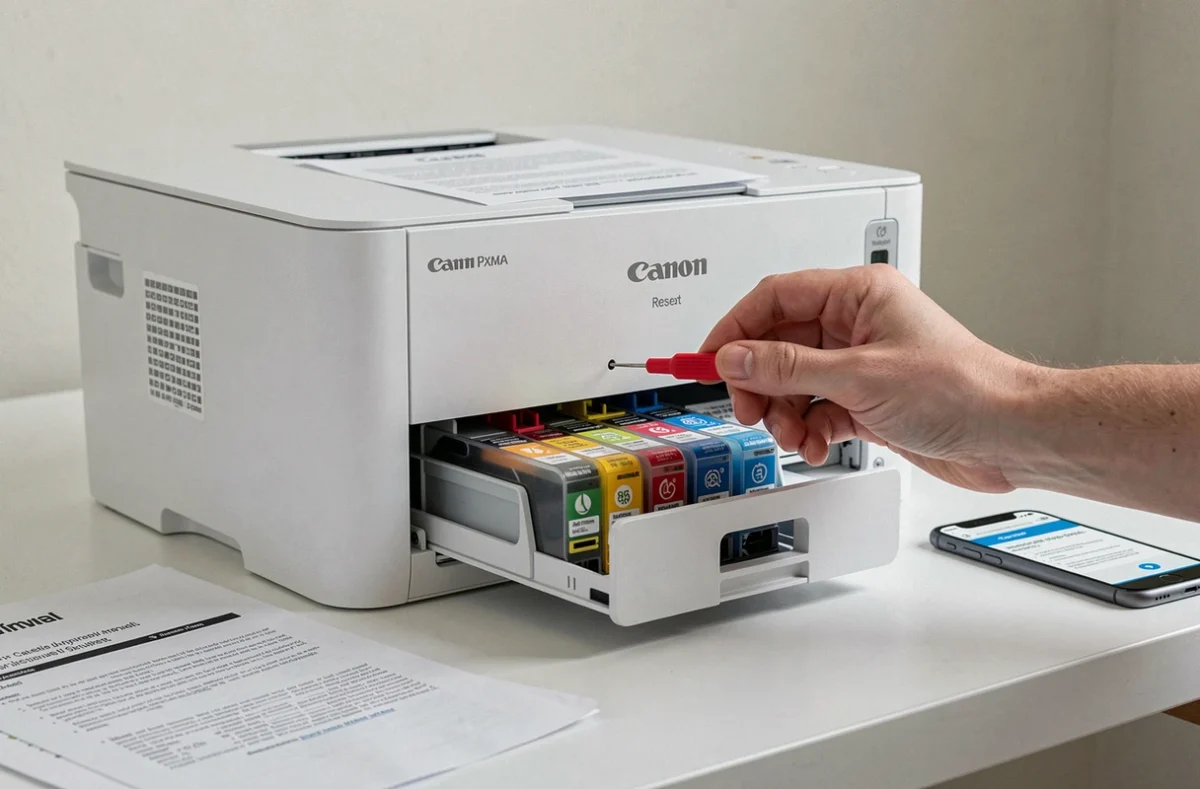
Outdated firmware: the persistent cause that the reset does not fix
One point that the reset never resolves: dated firmware. After a router change, an update of the Wi-Fi security mode (switching from WPA2 to WPA3, for example), or the installation of a new operating system on the computer, outdated firmware can cause repeated disconnections that the reset will only temporarily mask.
Updating the firmware is done through the Canon utility on the computer or, on some models, directly from the control panel via the Device Settings menu. Two precautions during this operation:
- Keep the power plugged in throughout the process. An interruption can render the printer unusable.
- Use a stable connection (reliable USB or Wi-Fi). Starting the update on an unstable network increases the risk of failure.
- Ensure that the printer has enough ink to complete the post-update verification cycle.
After the update, a network reset may be necessary for the printer to reconnect properly to the router with the new compatibility settings.
Unrecognized ink cartridge after reset: a common false problem
Some users find that after a hardware reset, the printer displays a message about an unrecognized cartridge. This behavior can be explained: the reset erases the calibration data related to the installed cartridges. The printer attempts to read the chips of the cartridges as if they were new.
Removing and then reinserting each ink cartridge after a complete reset is usually sufficient to resolve this error. Clean the gold contacts of the cartridge and the carriage with a dry cloth before putting them back in place. If the message persists, a defective or end-of-life cartridge is likely, regardless of the reset.
Resetting a Canon Pixma remains an effective troubleshooting tool as long as the correct level of intervention is targeted. A network reset for a Wi-Fi issue, a complete reset for a deep software blockage, a firmware update for a recurring incompatibility. Systematically applying the most radical reset is akin to reformatting a computer for a browser issue.